You are not logged in.
- Topics: Active | Unanswered
Pages: 1
#1 2025-08-03 10:25
- Armbroke
- Member
- Registered: 2025-07-10
- Posts: 78
Clean q4os installation on new ssd
I want to install a q4os system solo on a 250 GB ssd. The whole disk should be accessible by the system.
Appreciate tips on ways to do that. I have w10 running on another ssd.
Peter
Offline
#2 2025-08-03 10:42
- q4osteam
- Q4OS Team

- Registered: 2015-12-06
- Posts: 6,106
- Website
Re: Clean q4os installation on new ssd
Just use standard Calamares installation from the live media and select using the whole disk on Calamares partitioning module. Use the default and recommended options otherwise. Backup all your important data prior the installation.
Offline
#3 2025-08-03 15:00
- Armbroke
- Member
- Registered: 2025-07-10
- Posts: 78
Re: Clean q4os installation on new ssd
Sorry, cant seem to find "calamares download? 7
Offline
#4 2025-08-03 15:01
- theasmitkid
- Member
- From: NCT of Delhi
- Registered: 2025-01-26
- Posts: 345
Re: Clean q4os installation on new ssd
It's the "Install Q4OS" in the desktop on your live boot
Coding & Robotics Enthusiast | Brave & Spck Editor @ Lenovo Tab 4 8 · Android 8.1 · 2GB · 16GB
Offline
#5 2025-08-03 17:05
- Armbroke
- Member
- Registered: 2025-07-10
- Posts: 78
Re: Clean q4os installation on new ssd
Tried to install Calamares program, but "cant be used on this computer", triex q4os-8-x64.r.
How make this an ISO?
Offline
#6 2025-08-03 17:14
- q4osteam
- Q4OS Team
- Registered: 2015-12-06
- Posts: 6,106
- Website
Re: Clean q4os installation on new ssd
You don't need to install Calamares. You only need:
- Download "live media" iso from https://www.q4os.org/downloads1.html , Plasma or Trinity by your choice
- Create bootable USB or CD, please see https://www.q4os.org/dqa018.html
- Boot the media created
- Run installer - click icon "Install Q4OS" in the desktop. It's Calamares installer actually
- Follow on screen instructions
Offline
#7 2025-08-03 17:48
- Armbroke
- Member
- Registered: 2025-07-10
- Posts: 78
Re: Clean q4os installation on new ssd
Ok, explains it, will have a go again...
Offline
#8 2025-08-04 14:51
- Armbroke
- Member
- Registered: 2025-07-10
- Posts: 78
Re: Clean q4os installation on new ssd
Ok, finally got me a bootable usb, though I had to use another pc to produce it.
Booting it shows, as expected, a q4os desktop allowing tests, though not actually doing things
and not even showing the memory. Also, the original w10 on the computer is still there.
With that I have a couple of questions regarding actual installation;
First, my system is a 120 GB ssd, with w10 and q4os Plasma double booted, of which only w10 is presently working.
The new system is to sit on an empty 250 GB ssd, the two Systems totally independent.
What I need to know for the new installation is:
how/where to setup the correct disk for it,
make the entire new disk accessible, and
eqally important, change the desktop itself. What's on the live usb is clearly not the Plasma I am familiar with,
it is a bit familiar so maybe Trinity ?
I do not remember seeing anything about these settings, so please advise.
Peter
Offline
#9 2025-08-04 19:40
- hchiper
- Member

- From: Belgium
- Registered: 2020-07-28
- Posts: 788
Re: Clean q4os installation on new ssd
What I need to know for the new installation is:
how/where to setup the correct disk for it,
make the entire new disk accessible, and
You can make these choices during the installation, see https://calamares.codeberg.page/images/ … tition.png
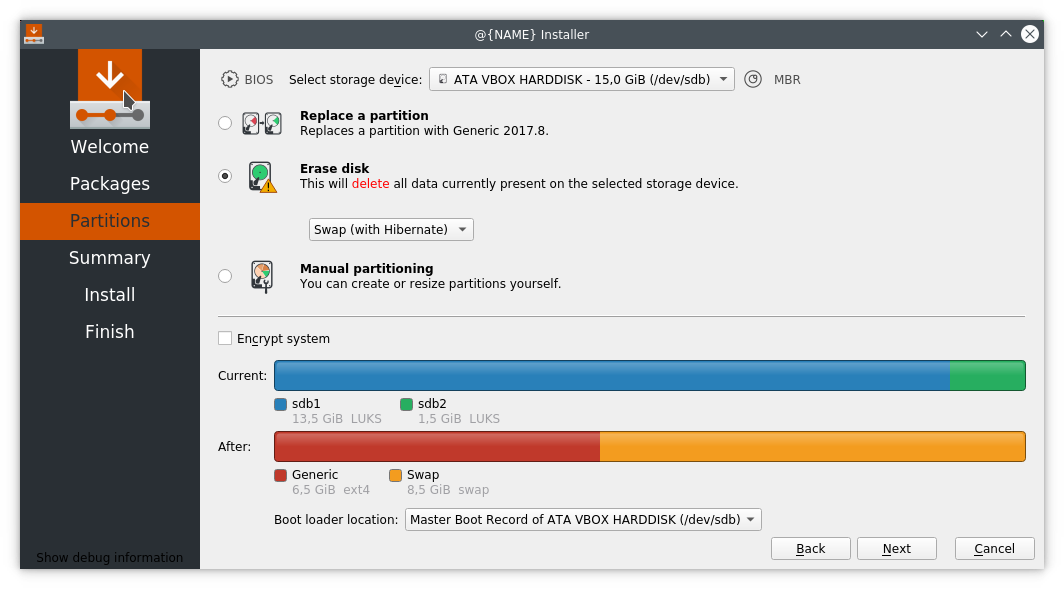
eqally important, change the desktop itself. What's on the live usb is clearly not the Plasma I am familiar with,
it is a bit familiar so maybe Trinity ?
What image did you use to create your bootable USB?
Q4OS machine: Samsung R519 - Pentium T4200 2.0 GHz - 4 GB RAM - 500 GB SSD
Offline
#10 2025-08-04 20:53
- Armbroke
- Member
- Registered: 2025-07-10
- Posts: 78
Re: Clean q4os installation on new ssd
"You can make these changes during installation....."
Booting my usb give me 4 choices:
Q4oS 5 Aquarius Trinity Live,
A similar with (fail-safe mode)
Localisation Support
and Utilities.
Utilities get me to "Hardware Detection Tool", is that the path forward ?
I can see that what I have is Trinity Live, can that be changed, here or later ?
"What image did you use to create your bootable usb":
Should be: q4os-5.8x64-tde.r1
Peter
Offline
#11 2025-08-04 21:00
- crosscourt
- Banned
- Registered: 2017-05-07
- Posts: 2,706
Re: Clean q4os installation on new ssd
When you boot click on Q4OS Aquarious Trinity Live, that will take you to a live session, that will look just like a typical desktop install, but its not installed, and just running in ram. If the system runs fine in the live session(dont do anything till you take some time to look around the live session to get familiar with Q4OS), you can click on install Q4OS and the actual install of Q4OS will begin. Follow the info hchiper gave you about the Calamares installer, and you should be able to get your install up and running.
Look here for tutorial for Q4OS fresh install, https://q4os.org/dqa018.html
Look here for info on the desktop installer, https://q4os.org/dqa016.html
Use the full featured desktop as for you its the best choice given your inexperience.
Hchiper and myself run the KDE version, I assume you want to install the Trinity version?
KDE live version is here, https://q4os.org/downloads1.html
Last edited by crosscourt (2025-08-04 21:12)
Offline
#12 2025-08-04 21:27
- hchiper
- Member
- From: Belgium
- Registered: 2020-07-28
- Posts: 788
Re: Clean q4os installation on new ssd
Should be: q4os-5.8x64-tde.r1
This is the Trinity (TDE) version. If you want the Plasma (KDE) version, use q4os-5.8-x64.r1.iso (the specification Plasma or Trinity appears clearly on the download page). Of course, you'll have to rewrite your bootable USB.
Q4OS machine: Samsung R519 - Pentium T4200 2.0 GHz - 4 GB RAM - 500 GB SSD
Offline
#13 2025-08-04 21:28
- Armbroke
- Member
- Registered: 2025-07-10
- Posts: 78
Re: Clean q4os installation on new ssd
Thanks, again..
I assume then clicking install" will let me choose disk and other features.
If I sound overcautious it's just that a mistake with this could potentielly erase my other disk.
But, as stated, the choice of disk should make it safe.
Just to clarify, my previous dualboot installation was a bit different from this live version, I think it did say KDE.
Is that possibly what you just referred to, and Trinity being a " simpler" version ?
If so, can I change that too during installation, as I would prefer KDE ?
A separate issue, it's getting late here, could you estimate the amount of time needed to do a full installation ?
Thanks
Peter
Offline
#14 2025-08-04 21:31
- crosscourt
- Banned
- Registered: 2017-05-07
- Posts: 2,706
Re: Clean q4os installation on new ssd
I gave you the link to the KDE live version above. Best option for you with a fresh install is to erase disk and allow automatic partitioning by the installer. It takes around 20 minutes for the install assuming you move directly to install from the live version. I wouldnt do that as you need to take time to learn KDE and the live session is a safe way to do it, then install. I assume you are using the 250gb new drive that has nothing else on the drive.
Trinity is a different desktop environment, like KDE, XFCE and Gnome for instance.
Last edited by crosscourt (2025-08-04 21:32)
Offline
#15 2025-08-04 21:36
- hchiper
- Member
- From: Belgium
- Registered: 2020-07-28
- Posts: 788
Re: Clean q4os installation on new ssd
If so, can I change that too during installation, as I would prefer KDE ?
No, as I just wrote above, to install Q4OS with Plasma as default desktop manager you need the Plasma iso image.
Q4OS machine: Samsung R519 - Pentium T4200 2.0 GHz - 4 GB RAM - 500 GB SSD
Offline
#16 2025-08-04 21:41
- crosscourt
- Banned
- Registered: 2017-05-07
- Posts: 2,706
Re: Clean q4os installation on new ssd
You cant miss the KDE live iso as its the first one on the list, https://q4os.org/downloads1.html
Last edited by crosscourt (2025-08-04 21:46)
Offline
#17 2025-08-04 22:02
- Armbroke
- Member
- Registered: 2025-07-10
- Posts: 78
Re: Clean q4os installation on new ssd
Right, thanks both of you !
Should be able to fix this now, just have to redo the Etcher session, which by the way for me is a bit shaky, takes several attempts. Looking at it now "TDE" should have pointed me at Trinity, but.....
I will be away for a couple of dags, so will do this later, now a bit more confident, thanks to you patient people.
Peter
Offline
#18 2025-08-04 22:17
- crosscourt
- Banned
- Registered: 2017-05-07
- Posts: 2,706
Re: Clean q4os installation on new ssd
There are video guides I believe for installing Q4OS KDE on Youtube, use the search how to install Q4OS KDE and you should find more than one.
Offline
#19 2025-08-05 08:53
- hchiper
- Member
- From: Belgium
- Registered: 2020-07-28
- Posts: 788
Re: Clean q4os installation on new ssd
(...) just have to redo the Etcher session, which by the way for me is a bit shaky, takes several attempts.
Look at "Q4OS Imager" in the Software Centre.
Q4OS machine: Samsung R519 - Pentium T4200 2.0 GHz - 4 GB RAM - 500 GB SSD
Offline
#20 2025-08-05 09:34
- q4osteam
- Q4OS Team
- Registered: 2015-12-06
- Posts: 6,106
- Website
Re: Clean q4os installation on new ssd
Look at "Q4OS Imager" in the Software Centre.
+1
Offline
#21 2025-08-05 09:35
- q4osteam
- Q4OS Team
- Registered: 2015-12-06
- Posts: 6,106
- Website
Re: Clean q4os installation on new ssd
See also this video tutorial https://vimeo.com/1041245993
Offline
#22 2025-08-06 03:17
- crosscourt
- Banned
- Registered: 2017-05-07
- Posts: 2,706
Re: Clean q4os installation on new ssd
Hes probably using Win10 so Etcher is going to be the better choice.
If not heres what Q4OS imager looks like, www.q4os.org/forum/viewtopic.php?id=4444
As hchiper mentioned you can get Q4OS imager in the Q4OS software center, assuming you have access to it.
Last edited by crosscourt (2025-08-06 03:28)
Offline
#23 2025-08-06 06:17
- hchiper
- Member
- From: Belgium
- Registered: 2020-07-28
- Posts: 788
Re: Clean q4os installation on new ssd
He just said "I had to use another pc"...
Maybe indeed with Windows...
@Armbroke: In this case I would suggest
- not using Etcher (installer, 200 MB) since it is "a bit shaky" for you,
- using Rufus (executable, 2 MB) instead.
Q4OS machine: Samsung R519 - Pentium T4200 2.0 GHz - 4 GB RAM - 500 GB SSD
Offline
#24 2025-08-06 06:32
- crosscourt
- Banned
- Registered: 2017-05-07
- Posts: 2,706
Re: Clean q4os installation on new ssd
Im surprised he had issues with Etcher as I use it all the time without problems. Rufus is really easy to use though.
Offline
Pages: 1